ConnectionsSource connectors

Confluence connector

How to connect Atlassian Confluence to ctx| through the fully managed app connector.

Fully managed app flow

This page covers the fully managed ctx| app, where Atlassian OAuth and the Forge app install link are managed for you. Self-hosted deployments use the same product flow after setup, but must provide their own Atlassian OAuth and Forge configuration. See Self-host Confluence & Atlassian.

The Confluence connector turns Confluence pages into repo-backed context for ctx|. Instead of reading every page in a site, you choose the spaces and pages that should be available to agents.

ctx| connects to the selected Confluence site through Atlassian OAuth and the ctx| Forge app. It then syncs the selected pages into a GitHub repository you choose, stores the sync scope in that repository, and runs the same ingestion path used for other repository-backed sources. When pages or spaces change in Confluence, the Forge app can notify ctx| so the GitHub-backed source can be updated and ingested again.

ctx| / Confluence connector
OAuth reads. Forge notifies.
Rail A / Account and API access
Actor
User
Signs in via Atlassian OAuth from ctx|
Atlassian OAuth
Account and permission grant
Confirms account, discovers sites, grants API access to selected site
ctx| stores
Linked account and site
OAuth token stored, site linked, awaiting Forge confirmation
Rail B / Site app and change events
Actor
Confluence admin
Installs ctx| Forge app into the Confluence site
ctx| Forge app
Runs inside Confluence site
Sends install status and page or space change events to ctx|
ctx| receives
Site events
Install confirmed, change events flowing, sync triggered
Converged state
ctx| Confluence Connector - active
Site linked via OAuthForge installed and events flowingSpaces selected for syncChanges auto-captured
GitHub sync repo - ingestion - knowledge graph
git-nativeauto-syncedagent-ready
OAuth

Gives ctx| permission to read Confluence content via Atlassian APIs.

Forge

Lets the Confluence site notify ctx| when content changes.

Why both

OAuth reads. Forge watches. Neither alone is enough.

OAuth grants read access. Forge confirms installation and sends change events. Together they let ctx| sync selected Confluence content into a GitHub-backed source.

Data flow

Confluence connector - data flow

ctx|
Source
Confluence Cloud
Spaces and pages
Change events
OAuth reads / Forge events
Connector
ctx| Confluence Connector
Reads selected pages via OAuth
Receives change events via Forge
Converts pages to repo-backed files
Writes markdown and config
Sync target
GitHub Repository
confluence/pages/
confluence/config.yaml
Git history / visible / reviewable
Repository ingestion
Ingestion
ctx| Ingestion
Search index
Knowledge graph
Retrieval stores
Context retrieval
Interface
ctx| MCP
ctx_advisor and ctx| tools
Consumers
Agents
Cursor / Claude Code / Codex / custom
Content movement
Control / access signal (OAuth, Forge)
Selected Confluence content moves into a team-controlled GitHub repository before ctx| ingests it for search, graph context, and MCP tools.

The fully managed setup flow guides you through each connection point in order.

Prerequisites

Before starting, make sure you have:

  • Access to a ctx| organization in the fully managed app.
  • Permission to connect Atlassian OAuth for the Confluence site.
  • Permission to install or request installation of the ctx| Forge app in Atlassian.
  • An active GitHub connection in ctx|, or the GitHub organization access needed to set one up during the flow.
  • At least one repository available in ctx| for Confluence sync output.

Not sure whether you have the right access?

Confluence: open admin.atlassian.com, choose the Confluence site, then check whether you can reach Connected apps and install or manage apps for that site. Atlassian documents this as organization admin or site admin access. If you cannot see those controls, ask an Atlassian admin in your org to complete the Forge app install.

GitHub: open the GitHub organization and try the GitHub App install flow for the repositories you want ctx| to read. You are ready if GitHub lets you install the app and choose repositories. If GitHub shows Request or Install and request, ask an organization owner to approve the installation.

References: Atlassian Connected apps and GitHub App install requirements.

Setup flow

Start from Connectors

Open the ctx| fully managed app, choose the relevant organization, go to Connectors, select Add connection, then choose Atlassian Confluence.

ctx| opens the Confluence setup wizard and tracks each task until the connector is ready.
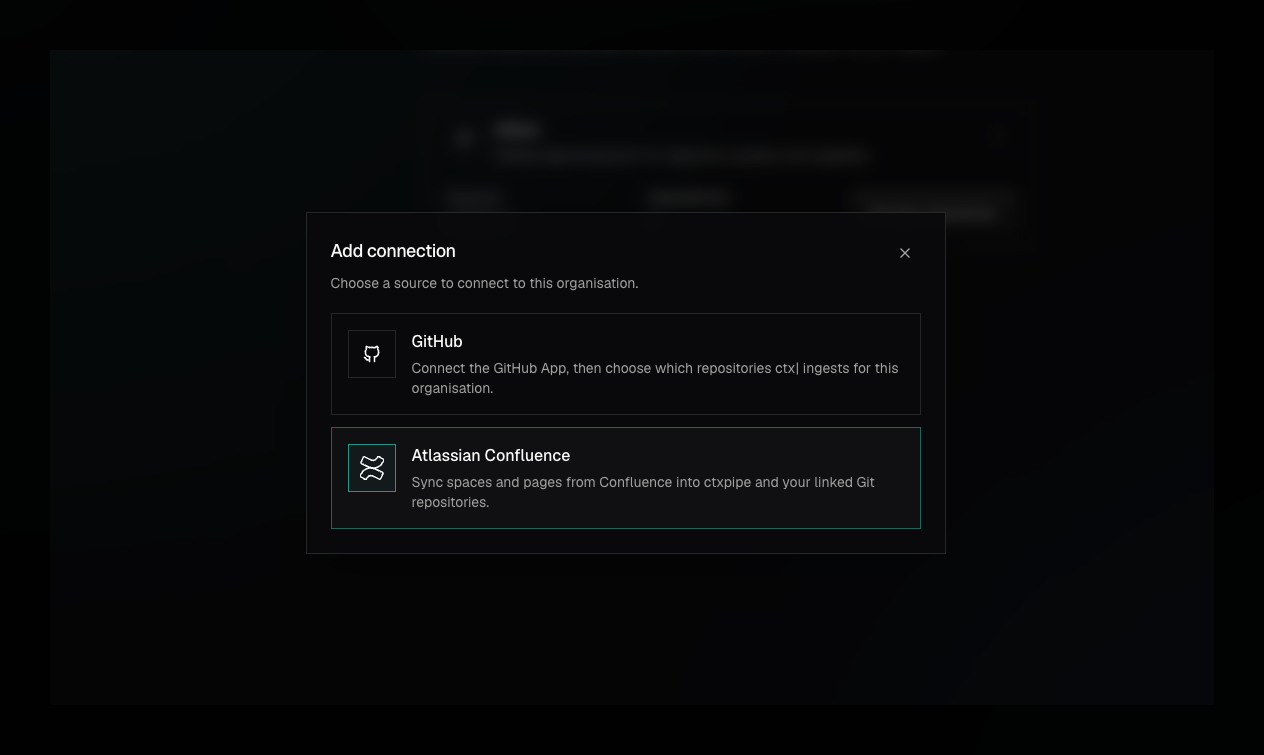
Add Confluence connection from the ctx| Connectors page

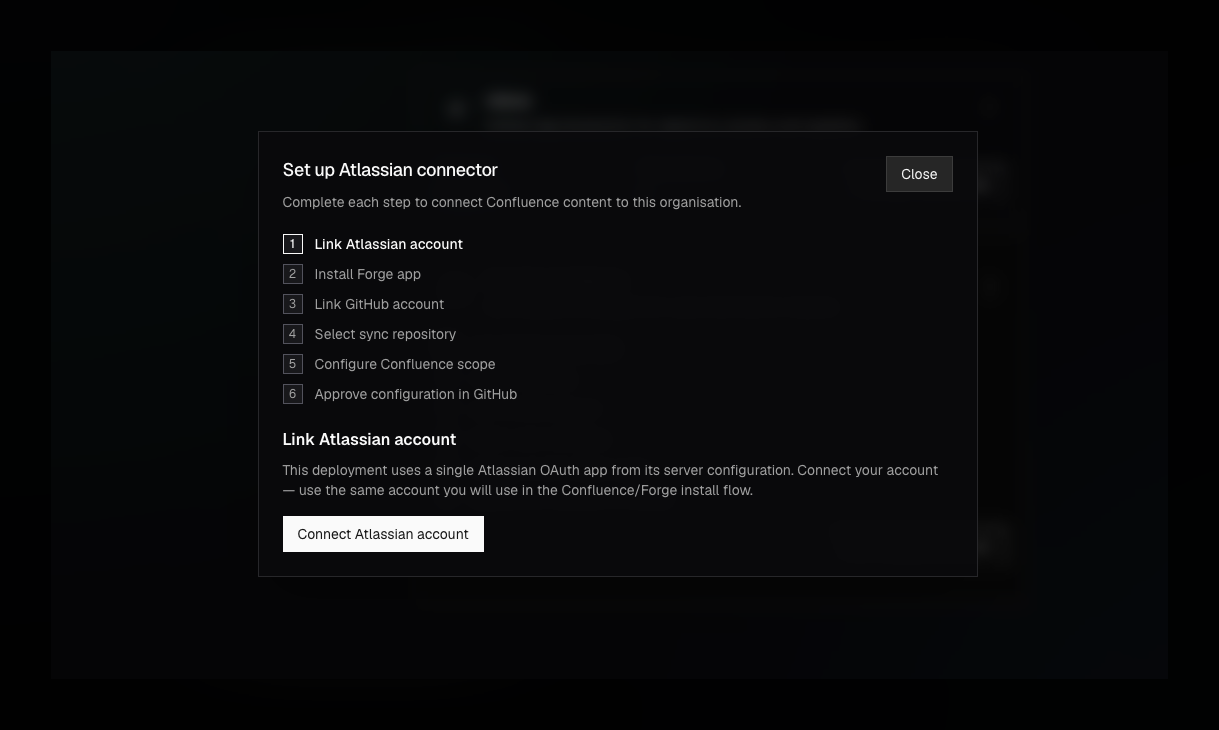
Link your Atlassian account with OAuth. This lets ctx| identify which Atlassian cloud site you are connecting and start the connector setup against that account.

If the Atlassian account is already linked to another ctx| organization, the app may ask you to confirm or cancel the pending account claim.

Link Atlassian account step in the ctx| Confluence setup wizard
Atlassian OAuth authorization screen for ctx|

Install the Forge app

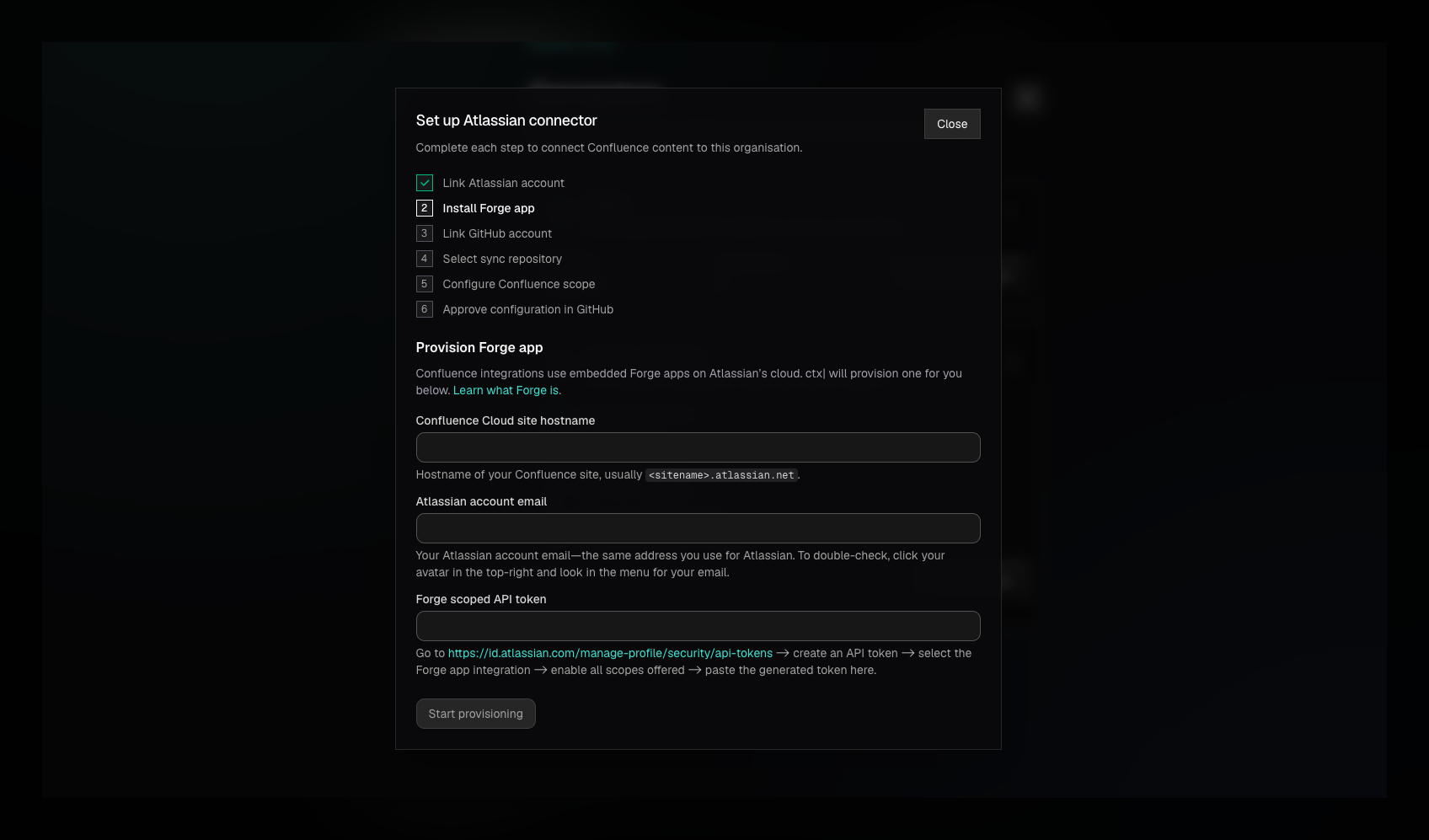
After OAuth, install the ctx| Forge app in the Atlassian site. The Forge app is the Atlassian-side integration that lets ctx| read the Confluence content you explicitly select.

You may need an Atlassian admin to complete this step. If you do not have admin permissions, ask an admin to install the app for the same Atlassian site before continuing.

Install the ctx| Forge app in Atlassian Confluence

Confluence sync needs a GitHub-backed target in ctx|. If GitHub is not already connected for the organization, the wizard sends you through the GitHub App installation flow.

The GitHub connector controls which repositories ctx| can see and which repositories are available as sync targets.

Select sync repository

Choose the repository that should act as the Confluence sync target in ctx|. The wizard only shows repositories that are already connected to ctx| and available to the selected organization.

Pick a repository that your team understands as the home for Confluence-derived context. You can change the connector configuration later from the Connectors page.

Configure Confluence scope

Choose the Confluence spaces and pages ctx| should ingest. Keep the scope intentional:

  • Start with the spaces your engineering team actively uses.
  • Exclude stale or sensitive areas that agents should not rely on.
  • Prefer authoritative docs over duplicates or abandoned pages.

After saving, ctx| starts syncing the selected Confluence content. The connector card shows its status and lets you reopen setup or edit scope later.

Fully managed vs self-hosted

The fully managed app supplies the Atlassian OAuth app and Forge install URL. In a self-hosted deployment, you provide the Atlassian credentials, Forge setup, and GitHub app configuration.

For self-hosted setup, go here.