
Exploring
Navigate the knowledge graph canvas, search nodes, filter node kinds, and inspect relationships.
Open Knowledge graph from the app navigation to inspect the organization's current graph snapshot.
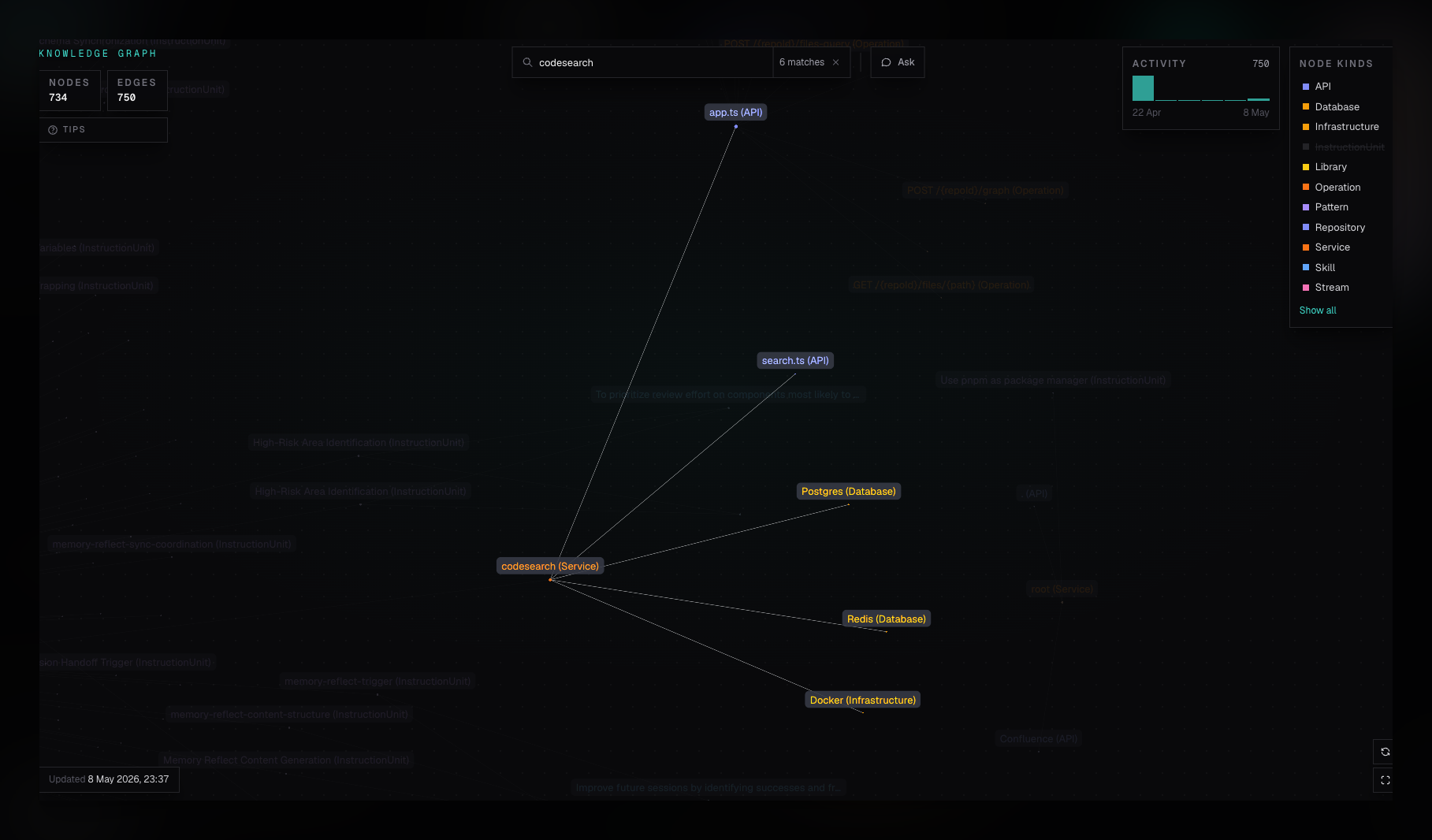
Canvas Basics
The graph is rendered as an interactive canvas:
- Nodes are colored by kind.
- Node size reflects connection degree.
- Edges represent extracted relationships.
- The footer shows organization-wide node and edge totals.
- The activity panel groups relationship observations by time.
Use Fit view to bring the current graph back into frame. Use Refresh graph after ingestion or cleanup activity.
Reading graph status
The graph includes a few status signals, but none of them is a correctness guarantee:
- Updated is the newest relationship observation available in the returned graph data. It is not the completion time of the latest repository ingest.
- Activity shows when relationship evidence was observed. It does not represent user activity, requests, or deployments.
- Subset shown means the canvas contains only part of a large organization graph. The node and edge totals remain organization-wide.
Search
Use the search box to match by:
- Node ID.
- Node kind.
- Node name.
- Node summary.
Search highlights matching nodes. If the match count is small enough, the canvas automatically fits to the result set.
Node Kind Filters
The Node kinds panel lists all kinds returned in the snapshot. Toggle a kind to dim or hide that group from the active selection. Use Show all to clear kind filters.
This is useful when a dense graph is dominated by one kind, such as libraries or instruction units, and you want to inspect services or APIs.
Empty States
The graph explains why it has no visible nodes:
- No repositories have been added yet.
- Repositories are still indexing.
- Repository indexing has finished, but graph extraction is still producing relationships.
Use the empty state actions to go back to repository setup or refresh the graph.
Missing or stale relationships
First check the repository on the Repositories page:
- If it is queued or indexing, wait for ingestion to finish.
- If ingestion recently completed, refresh the graph.
- If ingestion failed or the indexed source is stale, retry indexing from the repository menu.
An indexed repository can still produce incomplete graph context. Relationships are model-extracted claims, so important findings should be verified against their source before you rely on them.
Self-hosted operators can continue with Operations and Graph databases when ingestion finishes but graph data remains unavailable.
Deep Links
Selecting a node mirrors its ID into the URL as:
/:orgSlug/knowledge-graph?node=<node-id>Share that URL to reopen the graph with the same node selected.